
How to set up an M3U IPTV playlist in 4 minutes
A step-by-step walkthrough of getting an M3U endpoint working in TiviMate, IPTV Smarters, and VLC — from sign-in to first frame, with troubleshooting for common import errors.
An M3U playlist is the most portable way to consume an IPTV subscription. The same URL works in TiviMate, IPTV Smarters, VLC, Kodi, and any other player that supports the format — regardless of the operating system or device. This guide gets you from sign-in to first frame in under four minutes, with solutions to the three most common errors people hit during setup.
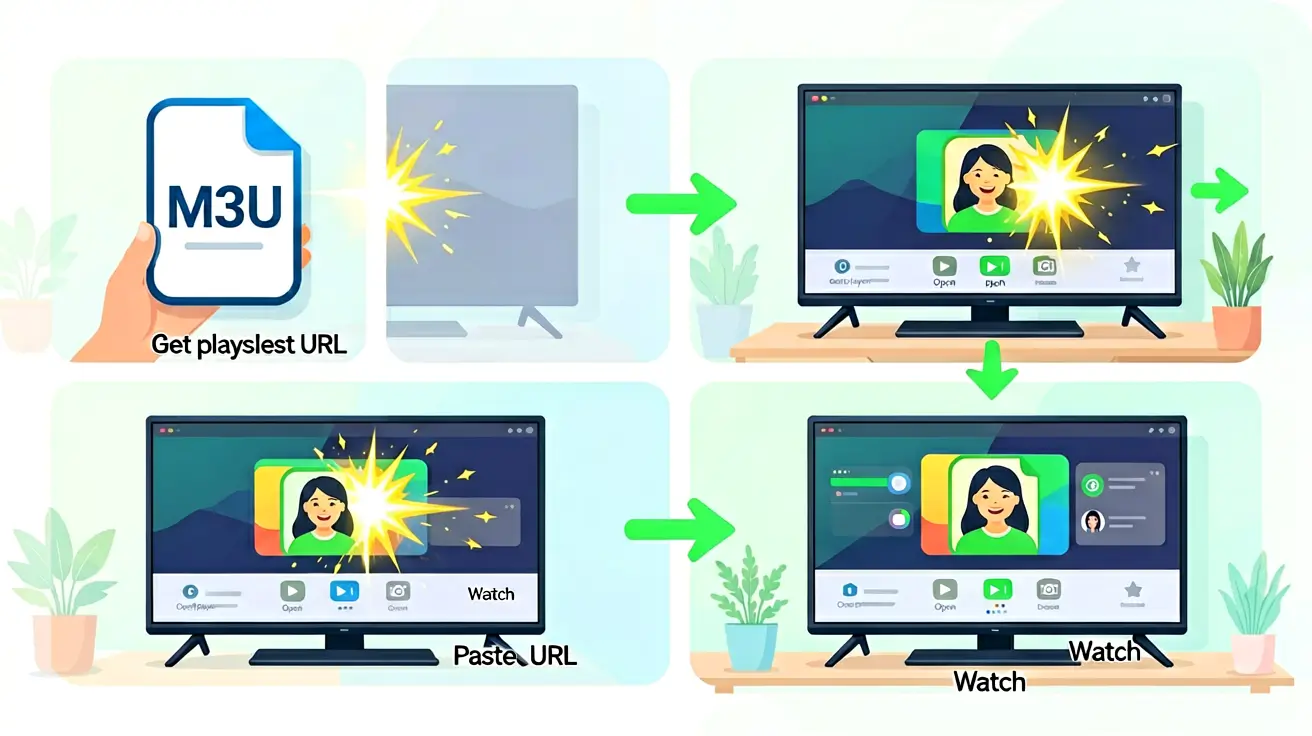
1. Get your M3U URL
After your subscription is active, sign in to your dashboard and open the Playlist tab. You will see two blocks: the M3U URL and the Xtream Codes credentials. Copy the M3U URL — it will look something like https://www.nanoiptv.com/api/playlist/m3u?username=...&password=....
The URL is unique to your account. Never share it — anyone with this URL can access your streams. If you suspect the URL has been leaked, you can regenerate it from the dashboard with one click. The old URL is invalidated immediately.
2. Install a player
Every platform has a recommended player. Here are the ones we support at the first-class level:
- Android TV / Firestick: TiviMate is the de-facto standard. Install from the Amazon Appstore or sideload the APK. The premium version (a few dollars, one-time) unlocks multi-screen, recording, and backup/restore. For a detailed comparison of IPTV players across all platforms, see our player guide.
- iOS / Apple TV: IPTV Smarters or iPlayTV. Both accept M3U and Xtream Codes. iPlayTV is the more Apple-native option with a cleaner interface and faster channel switching.
- Desktop: VLC Media Player. Open Media → Open Network Stream and paste the M3U URL. VLC is the Swiss army knife — it will play almost any format on almost any platform, though the EPG and category browsing experience is basic compared to dedicated IPTV players.
3. Import the playlist
Every player has an "Add playlist" or "Add M3U URL" option. Paste the URL, give the playlist a name (e.g., "NANO IPTV"), and save. The player will fetch the channel list and the EPG automatically.
Common error #1 — "Invalid URL": Make sure you copied the entire URL. M3U URLs are long (typically 200+ characters). Some email clients and messaging apps truncate long URLs. If the player says the URL is invalid, log back into your dashboard and copy it again directly — do not forward it through another app.
Common error #2 — "No channels found": The player fetched the playlist but the channel list is empty. This usually means your subscription has expired, the device clock is wrong (causing TLS errors), or your network is blocking the connection. Check your subscription status in the dashboard and make sure your device's system clock is set to automatic.
Common error #3 — "Playlist loads but channels do not play": The playlist downloaded but streams do not start. First, try a known-good channel from a major broadcaster — some niche channels can have intermittent source issues. If no channels work, check if your ISP or country blocks the streaming ports. Using a VPN usually resolves this, though most European ISPs do not block standard streaming ports.
4. Tune in
Open any channel. The first frame should appear within one to three seconds on a healthy connection. If you see buffering, our dedicated guide on why IPTV keeps buffering and how to fix it walks through the diagnostic checklist — bandwidth, WiFi vs Ethernet, concurrent device load, and bitrate selection.
What's the difference between M3U and Xtream Codes?
M3U is a flat list of streams — one URL, one playlist file. The player downloads the list and shows every channel in sequence. Xtream Codes is a small HTTP API that the player queries: it asks for categories, then for streams within a category, then for EPG data, then for catch-up availability. This gives the player more structure and makes browsing large line-ups (24,000+ channels) practical.
If you are deciding between the two, our M3U vs Xtream Codes comparison breaks down when to use each — and why you can use both at the same time on different devices at no extra cost.
What to do after setup
Once the playlist is imported and channels are playing:
- Configure the EPG. Under your dashboard EPG tab, copy the XMLTV URL and paste it into your player's EPG settings. This gives you the program guide with now/next and seven days ahead. Our EPG, now/next, and catch-up guide explains the entire setup.
- Set up favorites. Most players let you star channels and create a favorites list. With 24,000 channels in the line-up, a curated favorites list is the difference between scrolling endlessly and finding what you want in one tap.
- Test on another device. Import the same M3U URL on your phone or tablet to confirm everything works. Your plan includes one simultaneous stream — stop playback on the first device before testing on the second.
Pro tips for power users
- Use a URL shortener with caution. Some IPTV players do not follow HTTP redirects. If you shorten your M3U URL, test it on every device first. A better approach: bookmark the dashboard URL on each device.
- Create separate playlists for different devices. TiviMate supports multiple playlists. Create a "Sports" playlist and a "News" playlist pointing to the same M3U URL with different internal filters. This makes browsing 24,000 channels manageable.
- Back up your player configuration. TiviMate Premium lets you back up your entire setup to a file or cloud. Do this after initial setup. Restoring takes under a minute instead of redoing everything.
- Set a custom User-Agent if your player supports it. Some providers use anti-leech systems checking the User-Agent header. Match it to the player name to prevent false-positive blocks.
Real-world setup timeline
Based on thousands of setups, here is the realistic timeline:
- Minute 1: Sign up. Receive dashboard credentials instantly via email.
- Minute 2: Log in to the dashboard. Copy your M3U URL or Xtream Codes credentials.
- Minute 3: Install your player. Paste the URL or log in.
- Minute 4: First channel loads. EPG starts downloading in the background.
- Minute 5-10: EPG fully loads. Set up favorites — pick your top 20-30 channels.
- Day 2-7: Fine-tune. Set up a second device. Configure catch-up preferences.
Frequently asked questions
Why does my M3U URL stop working after a few weeks?
Check your subscription status first — expired subscriptions invalidate all playlist URLs. If active, someone may have obtained your URL. Regenerate from the dashboard and update all devices.
Can I use one M3U URL on multiple devices?
Yes. You can import the same M3U URL on any number of devices. Your plan includes one simultaneous stream — only one device can play content at a time. Stop playback on one device before starting on another.
Do I need to update the M3U URL when new channels are added?
No. The M3U URL is dynamic — it generates the current channel list every time your player fetches it. New channels appear automatically on the next refresh.
Device-specific setup notes
Android TV / Google TV
TiviMate installs from the Play Store. Premium unlock requires the TiviMate Companion app on an Android phone — install it there, purchase Premium, unlock on the TV via the same Google account.
Fire TV / Firestick
TiviMate is in the Amazon App Store in most regions. If not, sideload via Downloader as described in our Fire TV 2026 guide. IPTV Smarters is always available directly.
Apple TV
iPlayTV and IPTV Smarters are both on the App Store. No sideloading possible on tvOS. iPlayTV is the more Apple-native option with faster channel switching.
Smart TV (Samsung / LG)
Built-in app stores have limited IPTV options. IPTV Smarters is usually available. If not, an external Android TV device provides a vastly better experience than any built-in Smart TV app.
Common M3U playlist errors and how to fix them
Error: "Playlist URL returned HTTP 403 / Forbidden"
This means your M3U URL has expired or been revoked. Your subscription may have expired, or your URL was regenerated from the dashboard. Log in to the dashboard, check your subscription status, and copy the current M3U URL. If your subscription is active and the URL still returns 403, open a support ticket — this could indicate a server-side authentication issue.
Error: "Playlist downloaded but all channels show as offline"
The channel list loaded but none of the stream URLs work. This is almost always a network-level issue: your ISP may be blocking the streaming ports, your DNS server cannot resolve the stream domains, or a VPN is interfering with the connection. Test with the VPN off first. If channels work without the VPN, the VPN is the problem. If channels do not work with or without the VPN, try switching your DNS to Cloudflare (1.1.1.1) or Google (8.8.8.8) and test again.
Error: "Some channels work, others do not"
This is the most common pattern and the hardest to diagnose because it points to an intermittent issue. Possible causes: (1) the specific channel source is temporarily down — try again in 30 minutes, (2) the stream format is incompatible with your player — try the same channel in VLC as a baseline, (3) your ISP is throttling specific streaming ports. If channels from the same source consistently fail while others work, it is likely a source issue — report the specific channel to support.
Optimizing your setup for the best experience
- Set buffer size appropriately. TiviMate defaults to a 2-second buffer. Increasing to 4-6 seconds reduces buffering on unstable connections. The trade-off: channel switching takes slightly longer (a few extra seconds to fill the larger buffer). For sports and live events where low latency matters, keep it short. For movies and drama, extend it.
- Use category-based playlists. Instead of one massive playlist, TiviMate lets you hide entire categories you never watch. This makes the EPG load faster and navigation snappier. Hide categories like shopping channels, regional channels in languages you do not speak, and any category with content you never watch.
- Enable automatic frame rate matching. TiviMate (Settings → Playback → AFR) matches the display refresh rate to the content frame rate. European content is 25/50 fps; American content is 30/60 fps. Mismatched frame rates cause judder — subtle but irritating stuttering on panning shots. AFR eliminates this entirely.
Marcus runs the routing and encoding pipeline at NANO IPTV. Ten years of streaming infrastructure experience across CDN, HLS, and MPEG-DASH. Previously at a Nordic broadcast uplink provider. Writes about the practical side of getting a stream from the source to the screen.
Everything you need to get IPTV running — choosing between M3U and Xtream Codes, picking the right player, importing playlists, and configuring multi-device streaming. The complete setup manual from first sign-in to first frame.