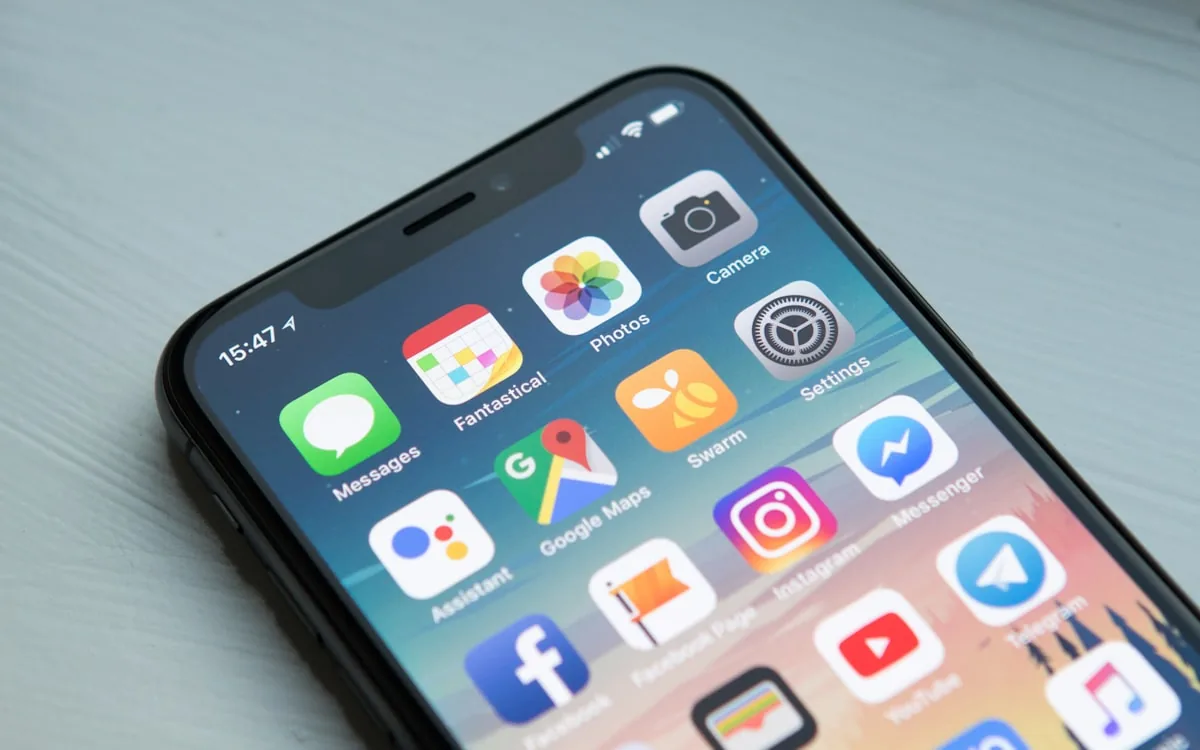

How to Import an IPTV Playlist: TiviMate, Smarters, VLC, Kodi
Step-by-step instructions for importing an M3U or Xtream Codes IPTV playlist in TiviMate, IPTV Smarters, VLC, Kodi, and Smart TV apps — plus fixes for the most common import errors.
Importing an IPTV playlist is the one skill every IPTV user needs. Whether you use TiviMate, IPTV Smarters, VLC, Kodi, or a Smart TV app, the mechanics are the same: you give the player a link, it downloads your channel list, and you start watching. This guide covers the two playlist formats, step-by-step imports in the most popular players, and the errors people run into most.
What exactly is a playlist?
Your IPTV subscription can be consumed two ways:
- M3U playlist: a single URL that returns a list of channels in the M3U format. The player downloads the list and shows every channel in sequence. Simple, universal, works in everything.
- Xtream Codes login: a small API where the player sends your username and password and gets structured data back — categories, streams, EPG, catch-up availability. Nicer to browse, but only works in players that speak the protocol.
Providers expose the same content both ways. Our M3U vs Xtream Codes comparison goes deeper. For this guide, the important part is where to find both in your dashboard.
1. Get your credentials
Sign in to your dashboard and open the Playlist tab. You will see:
- The M3U URL — a long link (200+ characters) containing your username and password.
- The Xtream Codes block — a server URL, username, and password.
Both are unique to your account. Never share them: anyone with the M3U URL can watch on your account. If you suspect a leak, regenerate the URL from the dashboard — the old one dies instantly.
2. Import in TiviMate
- Open TiviMate → Settings → Playlists → Add playlist.
- Choose Xtream Codes and enter server URL, username, password — or choose M3U Playlist and paste the URL.
- Name the playlist and save. Categories and EPG load in the background.
Full walkthrough with screenshots-level detail in the TiviMate setup guide.
3. Import in IPTV Smarters
- On the login screen, choose Login with Xtream Codes or Login with M3U URL.
- Enter the credentials or paste the URL.
- Add user, then open it. Live TV, VOD, and series appear in the main menu.
Details in the IPTV Smarters configuration guide.
4. Import in VLC
- Media → Open Network Stream.
- Paste the M3U URL and press Play.
- Open the playlist panel (Ctrl+L) to switch channels.
VLC has no Xtream Codes support — use the M3U URL. More in the VLC guide.
5. Import in Kodi
- Install an IPTV add-on. The two big ones: PVR IPTV Simple Client (built-in, M3U only) and Xtream Codes Client (add-on, supports the API).
- For PVR IPTV Simple Client: open its settings and paste the M3U URL into M3U Play List URL. Enable it as a PVR client and restart Kodi.
- For Xtream Codes Client: enter server URL, username, and password, then enable as PVR client.
Kodi then shows channels with an EPG in the TV section. It is heavier than dedicated players — see VLC vs Kodi before committing.
6. Import in Smart TV apps
Samsung and LG TVs use apps like IPTV Smarters or SS IPTV. The pattern is identical: open the app, choose playlist or Xtream login, paste credentials. App-store versions of these apps often lag behind phone versions, so if your TV app misbehaves, an Android TV box is the reliable path — see our Smart TV guide.
Common errors and fixes
Error: "Invalid URL" or "URL could not be parsed"
The URL is truncated. M3U URLs are long, and chat apps and email clients love to cut them. Copy the URL directly from the dashboard on the device itself, or open the dashboard in a browser on that device and copy from there.
Error: "No channels found" / empty list
The player fetched something but got nothing. Check: subscription active? Device clock set to automatic? Network blocking the connection? See the troubleshooting guide.
Error: HTTP 403 / Forbidden
The URL was revoked. Regenerate it in the dashboard and re-import on all devices.
Playlist imports but channels do not play
Try a major broadcaster channel first — some niche channels have source issues. If nothing plays, test the same M3U in VLC: if VLC also fails, the problem is network or subscription, not the player.
Keep the playlist fresh
Playlists are dynamic: every time a player fetches your M3U URL, it gets the current channel list. New channels appear automatically. Your player refreshes on a schedule (TiviMate every 24 hours by default); you can also force a refresh in the player settings after major line-up changes.
Frequently asked questions
Can I use the same playlist on several devices?
Yes — import it on as many devices as you like. Your plan covers one simultaneous stream: only one device plays at a time. Extra devices can be added at a reduced rate (25% of the plan price per device, up to five total).
Do I ever need to update the playlist manually?
No. The URL is stable and serves the current list on every fetch. You only re-import if you regenerate the URL.
Which format should I pick, M3U or Xtream Codes?
Xtream Codes where the player supports it (TiviMate, Smarters, Kodi add-on) — better browsing and EPG. M3U everywhere else (VLC, simple players).
Further reading
Marcus runs the routing and encoding pipeline at NANO IPTV. Ten years of streaming infrastructure experience across CDN, HLS, and MPEG-DASH. Previously at a Nordic broadcast uplink provider. Writes about the practical side of getting a stream from the source to the screen.