
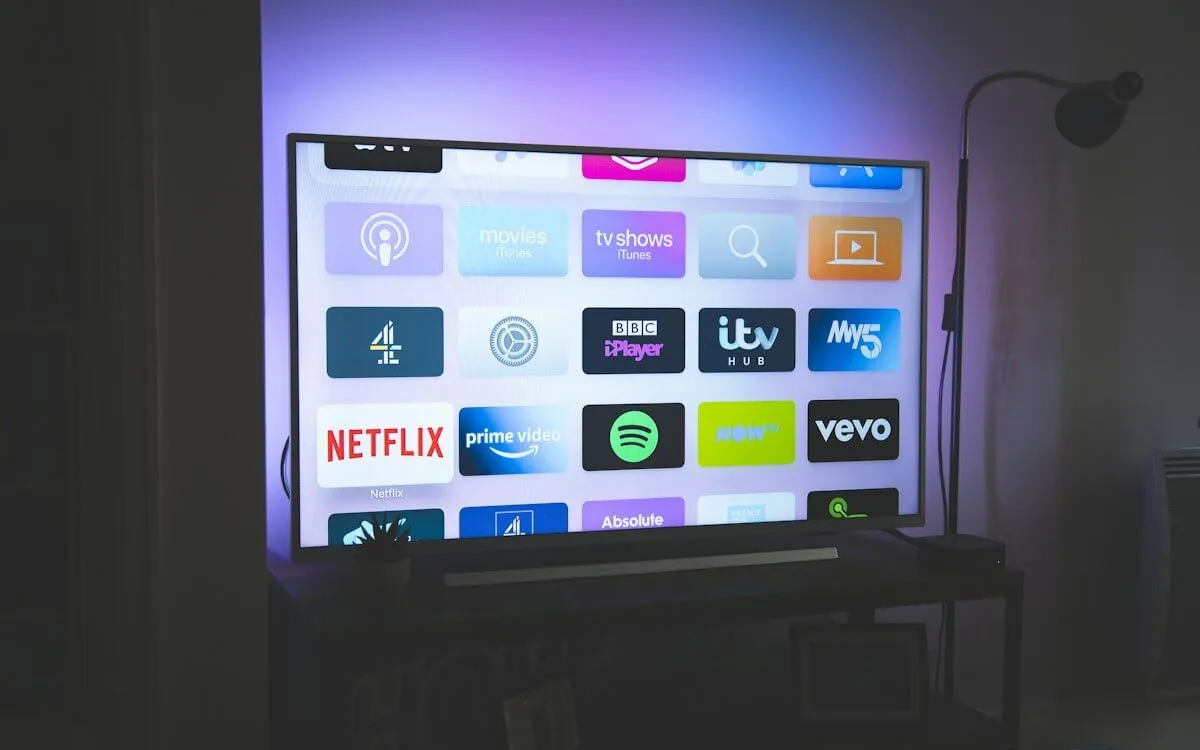
4K IPTV — What Ultra HD IPTV Actually Delivers in 2026
"4K IPTV" means easy upscaling scam — or genuinely sharp Ultra HD. Here is what the best 4K IPTV providers deliver, the equipment chain that unlocks it, and how to verify what your TV really shows.
4K IPTV is the most oversold phrase in the industry. Some providers advertise "4K for all 25,000 channels" — which is physically impossible when most live broadcasts are still mastered in 1080p. Others quietly upscale 1080p to a 4K container, adding file size without adding a single pixel of detail. This guide tells you what Ultra HD IPTV genuinely delivers, what the best IPTV with 4K actually offers, and how to verify you are not paying premium for empty upscaling.
What "4K IPTV" really means
4K means 3840×2160 pixels — four times 1080p. HDR means brighter highlights and wider color. A genuine 4K IPTV provider can only stream native 4K where the source is native 4K — which is mostly sports, premium films, and select live events. The remaining 99% of live TV is 1080p or lower, and any provider that claims otherwise is describing upscaling, not resolution. NANO IPTV's Premium 4K tier delivers 4K UHD streams where the source supports them — an honest "best 4K IPTV" claim — alongside 57,000+ channels and 238,000+ on-demand titles.
How to tell real 4K from upscaling
The marketing says "4K", but your eyes can verify what is real in about a minute. First, check the small print or the stream info: a native 4K stream is flagged as 2160p in your player's stats, while an upscale is a 1080p source repackaged into a 4K container — the player will still show 2160p, but the picture will not have gained a single real pixel of fine detail. Here is the practical test:
- Look at fine detail. On a native 4K source, textures — grass blades, shirt fabric, hair — stay sharp when the camera holds still. On an upscale, edges look softened as if a "sharpen" filter was run over a low-res image.
- Watch during fast motion. Upscaling artifacts become obvious on quick pans and text crawls, which shimmer or alias. Native 4K does not.
- Compare the bit rate. Native 4K needs a high bit rate to carry the extra pixels. If the "4K" channel looks compressed and blocky in dark scenes while claiming 4K, it is almost certainly an upscaled lower-source.
This is the same check we use when reviewing a provider — and it is why our 4K and HDR guide goes deep into codecs and bit rates. A provider that is honest about 4K will happily let you verify it on a trial rather than hiding behind a badge.
4K bandwidth, data, and your one stream
Bandwidth is the part most people underestimate. 4K does not just look sharper — it carries roughly four times the data of 1080p. Plan for these figures:
- 1080p: ~5–8 Mb/s sustained.
- 4K SDR: ~25 Mb/s sustained.
- 4K HDR: ~40 Mb/s sustained.
Because an IPTV plan streams on one device at a time, your connection only ever needs to keep up with one of these — you are not budgeting for several simultaneous 4K streams the way you would with a bundled multi-screen TV package. Throughput matters more than the headline speed on your plan: if your ISP's "100 Mb/s" collapses during peak evening congestion, 4K will buffer even though the number looks fine. Whether a VPN helps your specific network is covered in our VPN for IPTV guide.
Device-by-device: which players can actually do 4K
4K IPTV needs a player that decodes 4K AND your TV to render HDR — a 4K hardware player plugged into a 1080p TV is wasted money. Here is what different devices deliver:
| Device | 4K decoding | HDR | Best for |
|---|---|---|---|
| Firestick 4K Max | Yes | HDR10, Dolby Vision | Budget 4K IPTV |
| Nvidia Shield | Yes | HDR10, Dolby Vision, HDR10+ | Match-grade playback |
| Modern Android TV boxes | Yes (check spec) | Varies | Flexible all-rounder |
| Formuler Z11 Pro | Yes | HDR10 | MyTVOnline 2 users |
| Older Firestick (non-4K) | No | No | Avoid for 4K |
Full per-device guidance, including how to set each one up, is in our device compatibility guide, with dedicated walkthroughs for the Firestick and the Nvidia Shield.
The equipment chain that unlocks 4K
Getting a genuine 4K HDR stream to your TV is a chain, and every link has to hold. If any one fails, you silently get 1080p or washed-out colors:
- The source: Native 4K. Upscaled 1080p adds no detail — you are paying for nothing.
- Your player: Must decode 4K and pass HDR metadata through — HDR10 or Dolby Vision.
- Your HDMI cable: HDMI 2.0 or higher, rated for 4K at 60 fps.
- Your TV: A panel that actually renders HDR — not every "4K TV" handles HDR correctly.
- Your connection: ~25 Mb/s sustained for 4K, ~40 Mb/s for 4K HDR.
The full technical breakdown of each link is in our 4K and HDR guide.
Setting up each player for 4K
Getting 4K is mostly about configuration, not hardware magic — the device already in your hand may be capable. The common steps across players:
- Force the highest resolution in the player. Many apps default to 1080p "for compatibility." Open the resolution settings and set playback to 2160p where the stream supports it.
- Enable HDR passthrough. On an Android/Fire TV device, HDMI output should be set to passthrough or "auto"; on a streaming box, match the display refresh and let the device send HDR metadata to the TV.
- Use a capable player app. For Xtream Codes-based 4K, a player that honors the stream's resolution tag matters. Dedicated walkthroughs for Firestick, Nvidia Shield, Android TV / Google TV, and Android TV boxes each cover the exact settings.
- Check the TV's HDMI input label. Some TVs limit HDMI inputs; labeling the input as "Gaming" or enabling Enhanced HDMI unlocks full 4K HDR bandwidth, otherwise several 4K-capable TVs quietly cap to 1080p.
Run through these in order and many "my 4K looks like 1080p" complaints resolve without buying anything new. If the picture is still soft afterward, the missing link is almost certainly the source — an upscale mask over 1080p.
The HDR checklist before you blame the provider
HDR is where a surprising number of "bad 4K" cases go wrong, and none of it is the stream's fault. Confirm each of these before deciding a channel is under-delivering:
- The panel: Does your TV actually support HDR10 or Dolby Vision? A 4K-resolution panel is not automatically an HDR panel.
- The cable: HDMI 2.0 onward, preferably a premium-certified cable length that is not coiled tightly against other power cables.
- The player: Is HDR passthrough on, and does the app flag HDR content?
- The OS setting: Disable any aggressive "contrast enhancement" that crushes the HDR curve, making highlights blow out or colors look flat.
When these are all correct and the channel still refuses HDR, then — and only then — it is a source-side limitation, which is normal for a broadcast that was never mastered in HDR. Our 4K and HDR guide goes into the panel and HDMI specifics in full.
Choosing the best 4K IPTV plan
When you compare best 4K IPTV options, prioritize the provider that is honest about which content streams in 4K over the one that promises it everywhere. Ask, or verify in the trial, that the sports and films you care about are native 4K sources. On NANO IPTV, that means the Premium 4K tier — and you can confirm it on the free 24-hour trial, no card.
Frequently asked questions
Is all content on 4K IPTV actually 4K?
No. Native 4K is limited to sources mastered in 4K — mainly sports, films, and select events. The rest of live TV is 1080p. Providers that claim "4K on all channels" are describing upscaling.
Do I need a special device for 4K IPTV?
You need a device and HDMI cable that handle 4K plus HDR passthrough, and a TV panel that renders HDR. A Firestick 4K Max or an Nvidia Shield are common picks; see our device compatibility guide.
How much bandwidth does 4K streaming use?
Roughly 25 Mb/s sustained for 4K and about 40 Mb/s for 4K HDR. On a one-device IPTV plan, your connection only needs to support a single stream.
Why does my "4K" picture look soft?
Two likely reasons. Either the source is an upscale — a 1080p signal repackaged into a 4K container with no real extra detail — or a link in the chain is downgrading it: an HDMI cable below 2.0, a player not passing HDR metadata, or a TV panel that does not truly render HDR. Check the stream stats for a native 2160p source first, then work through the equipment list above.
Is 4K IPTV worth paying extra for?
It depends on your screen and your content. On a large 4K TV watching sports, films, or events that are native 4K sources, the difference is obvious and worth it. On a smaller screen, or if most of what you watch is 1080p anyway, the premium tier's 4K is a smaller factor — the extra channels and support are frequently the real reason to upgrade. Check what you actually watch in the trial before deciding.
Sasha handles the server fleet and network topology. Background in telecom and ISP operations — if something needs to get packets from A to B with sub-millisecond jitter, she is the person who makes it happen. Writes about player configuration, latency, and protocol internals.
Everything that determines whether your stream looks good and plays smoothly — bandwidth diagnostics, 4K and HDR configuration, multi-device connection management, and player optimization.