IPTV on iOS & Apple TV — iPhone, iPad, Apple TV Setup Guide
Complete setup guide for IPTV on iPhone, iPad, and Apple TV. Covers iPlayTV, IPTV Smarters, Xtream Codes configuration, AirPlay, EPG setup, and the best players for the Apple ecosystem.
The Apple ecosystem has its own set of IPTV players — and the choices are different from Android. Apple does not allow sideloading, and the App Store is more restrictive about what IPTV players can offer. But the players that are available — iPlayTV and IPTV Smarters — are polished, stable, and deeply integrated with tvOS and iOS. This guide covers everything you need to set up IPTV on any Apple device.
Best IPTV players for Apple devices
Two players dominate on Apple hardware, and choosing between them is straightforward:
iPlayTV — the best Apple TV IPTV player
iPlayTV is purpose-built for Apple TV and iPad. It is the closest you can get to a native Apple TV experience for IPTV. The interface matches tvOS design conventions — smooth animations, native player controls, and Siri Remote navigation that feels natural.
- Price: $7.99 (one-time, no subscription)
- Supports: Xtream Codes and M3U
- EPG: Automatic with Xtream Codes; manual XMLTV URL for M3U
- Features: Catch-up (where supported), VOD, favorites, multiple playlists, picture-in-picture on iPad, AirPlay to Apple TV from iPhone
- Best for: Apple TV 4K and iPad users who want a native-feeling interface
IPTV Smarters — cross-platform consistency
IPTV Smarters is available on iPhone, iPad, and Apple TV, with the same interface on every platform. If you use IPTV on both an iPhone and an Apple TV, the familiar layout means no learning curve when switching devices.
- Price: Free (with optional in-app purchases)
- Supports: Xtream Codes and M3U
- EPG: Automatic with Xtream Codes
- Features: Parental controls, VOD, series, multi-user support, built-in player
- Best for: Multi-device households using both Apple and non-Apple devices
Step-by-step setup on Apple TV 4K
- Open the App Store on your Apple TV and search for iPlayTV (or IPTV Smarters).
- Install and open the app. Select "Xtream Codes" as your connection type.
- Enter your server URL, username, and password from your subscription email.
- The player fetches channels, categories, and EPG automatically. This takes 10-30 seconds depending on your connection speed.
- Browse channels. The EPG grid shows now/next and 7 days ahead. Press and hold the touch surface on the Siri Remote to add channels to favorites.
- (Optional) Go to Settings → EPG in iPlayTV to force an EPG update if the guide is empty.
Step-by-step setup on iPhone and iPad
- Download IPTV Smarters or iPlayTV from the App Store.
- Open the app and select "Xtream Codes."
- Enter your credentials (server URL, username, password).
- The app loads your channel list. Tap any channel to start watching.
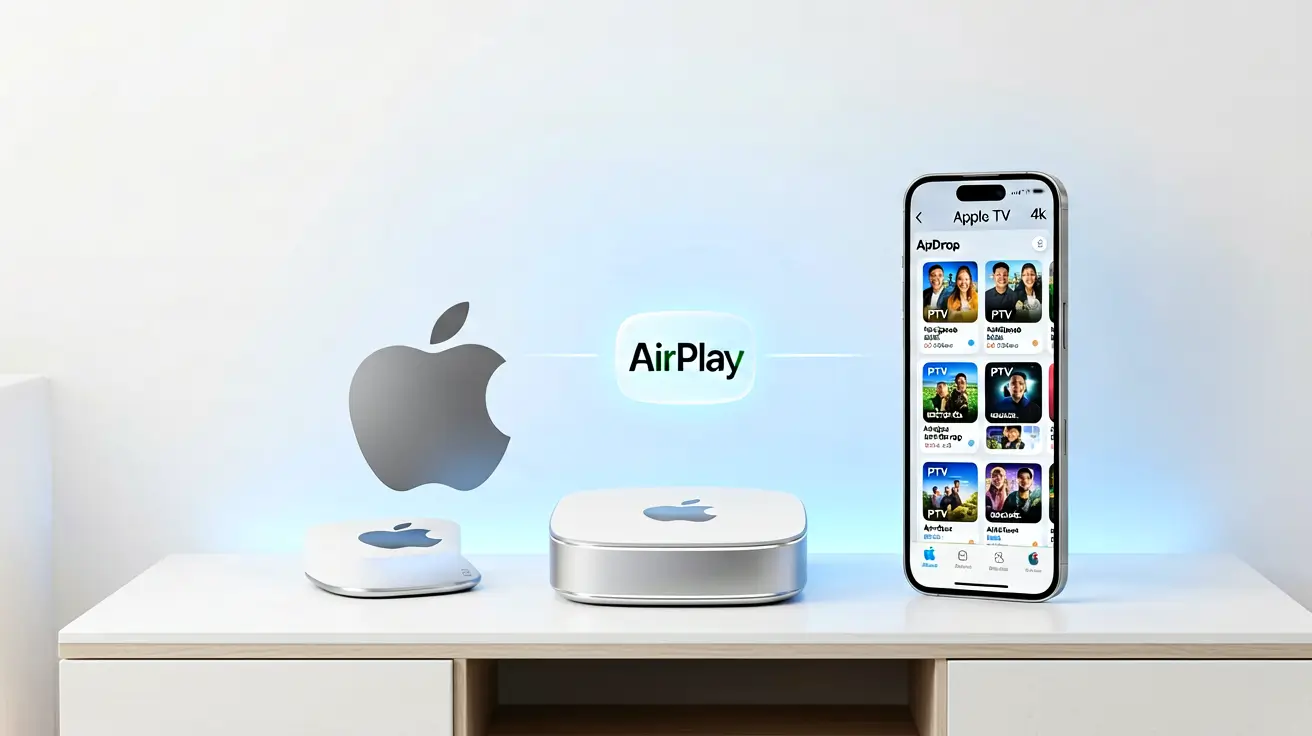
- To AirPlay to Apple TV: start a stream on your iPhone, tap the AirPlay icon, and select your Apple TV. Picture-in-picture continues on your phone while the stream plays on the TV.
What about VLC on iPhone or Apple TV?
VLC for iOS can open M3U URLs — tap the Network tab, enter your M3U URL, and streams play. But VLC has no EPG, no category browsing, no catch-up, and no VOD support. It is a fallback option for testing, not a daily driver. Use iPlayTV or IPTV Smarters instead.
Limitations of IPTV on Apple devices
Apple's platform restrictions mean a few things are different compared to Android TV:
- No sideloading: Every app must come from the App Store. You cannot install TiviMate (Android-only) on any Apple device. This is the biggest limitation — TiviMate is widely considered the best IPTV player, and it is simply unavailable on Apple hardware.
- No VLC playlist integration: VLC on iOS can play individual streams but cannot import an M3U playlist with EPG. The functionality that makes VLC useful on desktop (open a URL, watch everything) does not translate to mobile.
- Apple TV remote limitations: Entering server URLs and passwords on the Apple TV remote involves clicking through an on-screen keyboard. Long passwords (which security recommends) are tedious to enter. Use the iPhone Remote app (built into Control Center) to type with the iOS keyboard instead.
Frequently asked questions
Can I use the same subscription on iPhone and Apple TV?
Yes. Your subscription allows one simultaneous stream. You can install iPlayTV on both devices, but only one can stream at a time. Starting a stream on a new device stops the previous one; if you see unexpected device activity, message us on WhatsApp to have your credentials regenerated.
Does IPTV work on iPad cellular?
Yes. Cellular iPads can stream over 5G. Streaming in 1080p uses approximately 1.5-2 GB per hour. 4K streaming uses 5-7 GB per hour. Check your data plan before extended viewing on cellular.
Can I record IPTV streams on Apple TV?
No. Apple TV apps cannot access the file system for recording. iPlayTV and IPTV Smarters do not support recording. The Nvidia Shield (Android TV) is the only streaming box that supports IPTV recording.
Further reading
- What devices are compatible with IPTV? — the full device compatibility matrix.
- Choosing an IPTV player: TiviMate vs Smarters vs VLC — player comparison across all platforms.
- IPTV on PC: Windows & macOS setup — if you also watch on a computer.
- IPTV buffering fixes — troubleshooting stream quality issues.
Marcus runs the routing and encoding pipeline at NANO IPTV. Ten years of streaming infrastructure experience across CDN, HLS, and MPEG-DASH. Previously at a Nordic broadcast uplink provider. Writes about the practical side of getting a stream from the source to the screen.
Which devices run IPTV, which IPTV apps work best on each platform, and how to set them up — from Android TV and Apple TV to Smart TVs, PCs, and gaming consoles.