Can You Run IPTV on a PC? — Windows & macOS Setup Guide
How to run IPTV on Windows and macOS in 2026. Covers VLC, IPTV Smarters Desktop, Kodi with IPTV Simple Client, browser options, and how to get a TV-native experience on your computer.
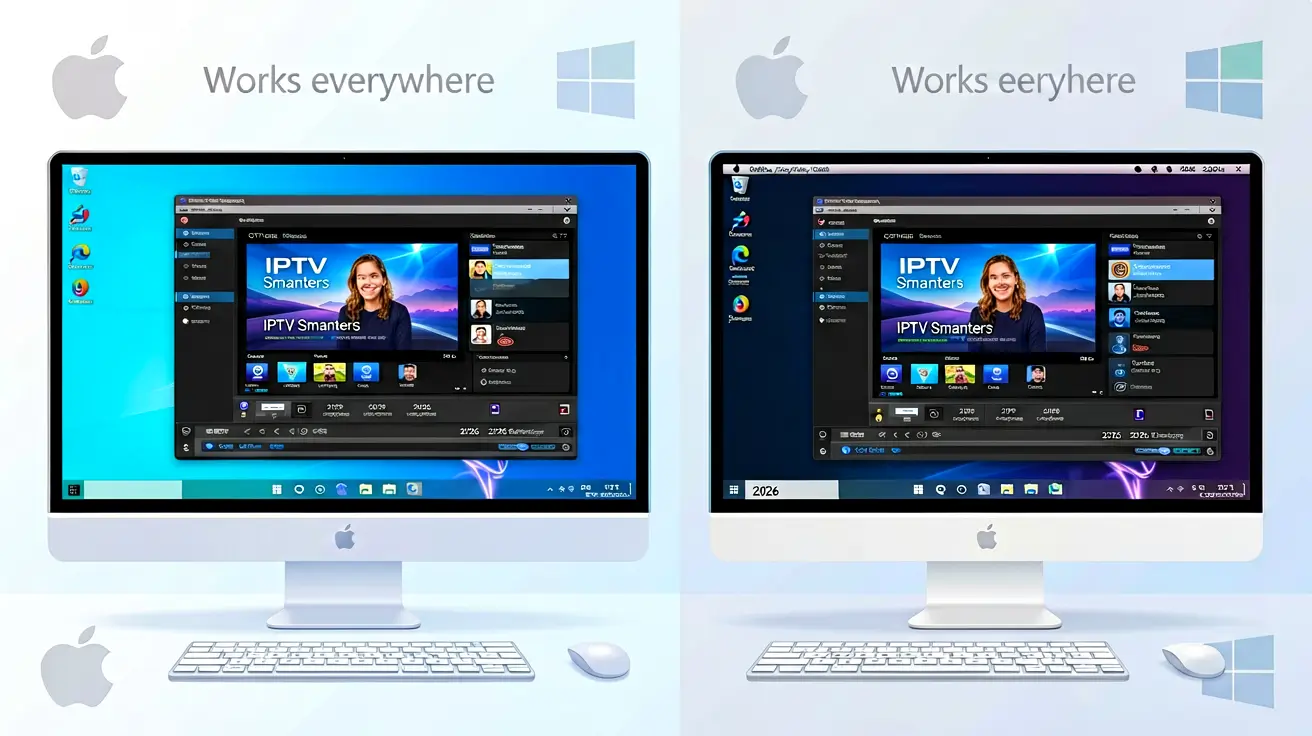
Yes, you can run IPTV on a PC — and the options are more varied than on any other platform. Windows and macOS have the widest selection of IPTV-compatible applications, including VLC (for raw stream access), IPTV Smarters Desktop (for a TV-like experience), Kodi (for power users), and even browser-based players. This guide covers each option and helps you choose the right one.
Option 1: IPTV Smarters Desktop — the TV experience on PC
IPTV Smarters Desktop is a dedicated IPTV application for Windows and macOS that mirrors the Smart TV and mobile experience. It is the closest you can get to a TV-native interface on a computer.
- Install: Download from the IPTV Smarters website (Windows .exe or macOS .dmg).
- Login: Choose Xtream Codes, enter your server URL, username, and password.
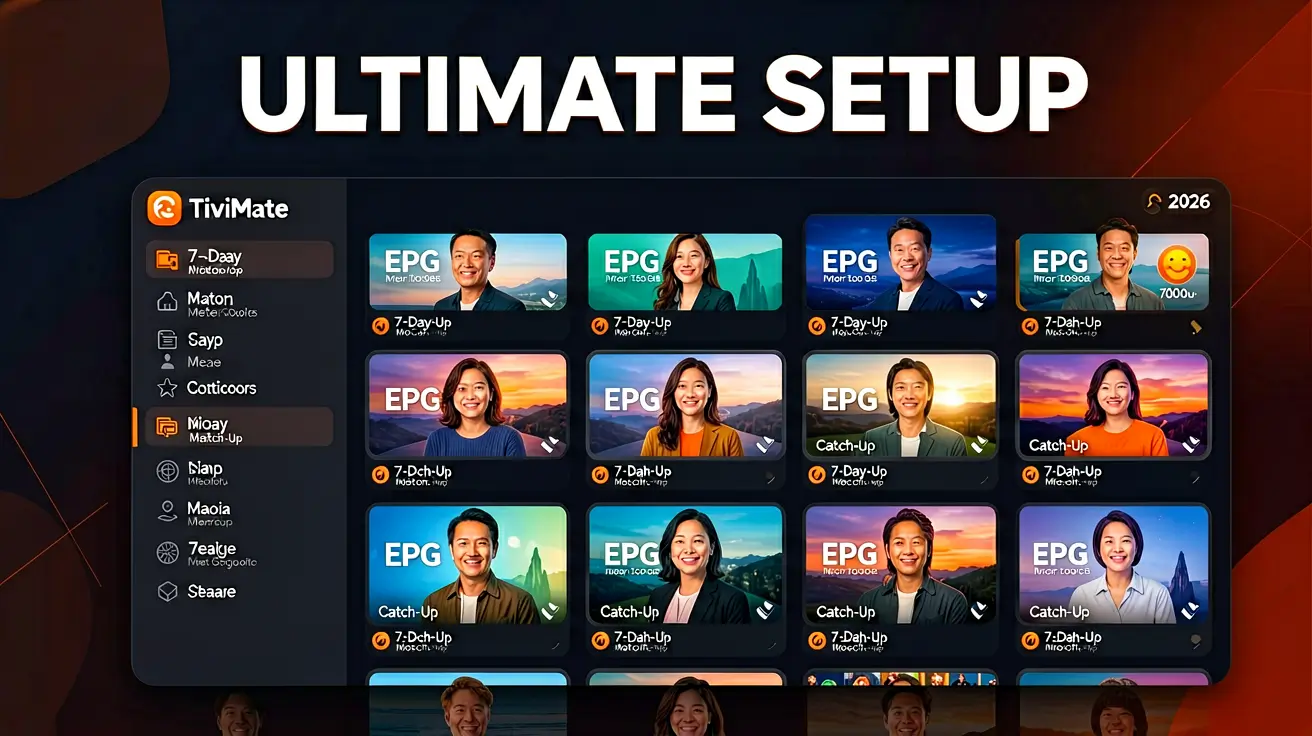
- Interface: Full-screen TV mode with EPG grid, category sidebar, channel list, and VOD library. Resize the window like any desktop app.
- Pros: Familiar Xtream Codes setup, automatic EPG, VOD and catch-up support, parental controls.
- Cons: Not available on the Microsoft Store or Mac App Store (downloaded from the developer site). The interface is designed for TV and can feel oversized on a high-resolution monitor.
Setup takes 3 minutes: Download → install → enter Xtream Codes → watch. No configuration beyond the initial login.
Option 2: VLC Media Player — the reliable fallback
VLC is already installed on most PCs. It is not designed for IPTV but it works, making it the best fallback option for testing and occasional viewing.
- Open VLC (download from videolan.org if not installed).
- Go to Media → Open Network Stream (Ctrl+N on Windows, Cmd+N on Mac).
- Paste your M3U URL and click Play.
- VLC loads the channels as a numbered playlist. Click any channel to watch.
VLC limitations: No EPG, no category browsing, no VOD, no catch-up. The entire channel list (25,000+ entries) appears as a flat, numbered list. Scrolling is impractical. Use VLC for quick testing of a single channel's availability, not as your daily IPTV player.
Option 3: Kodi with IPTV Simple Client — the power-user setup
Kodi is a media center application that, with the right add-on, becomes a full-featured IPTV player with EPG, recording, and PVR functionality. It requires more setup than IPTV Smarters but offers more features.
- Install Kodi from kodi.tv.
- Go to Add-ons → Download → PVR Clients → "PVR IPTV Simple Client" → Install.
- Configure the add-on: enter your M3U URL and the XMLTV EPG URL from your subscription email.
- Restart Kodi. The TV section now shows your channels with full EPG, category groups, and the ability to schedule recordings.
Kodi advantages: Recording (schedule or one-tap), timeshift (pause/rewind live TV), PVR channel groups, customizable EPG colors and layout, skin support for different looks.
Kodi drawbacks: Steeper learning curve, occasional add-on breakage after Kodi updates, higher resource usage than dedicated IPTV players.
Option 4: Browser-based IPTV players
Several web-based IPTV players let you watch through a browser without installing anything. Search for "web IPTV player" and enter your M3U URL. These are convenient for quick access on a shared or work computer where you cannot install software:
- Pros: No installation, works on any computer with a browser, useful for testing.
- Cons: No EPG, limited codec support (browsers handle H.264 well but struggle with H.265), no VOD, no catch-up, lower stream reliability than native apps.
Which option should you choose?
For daily TV watching on a PC, use IPTV Smarters Desktop — it is the only option that gives you a proper TV interface on a computer screen. For scheduled recording and PVR features, set up Kodi with IPTV Simple Client. For quick testing or single-channel viewing, VLC is fine. Browser players are a last resort — functional in a pinch but not a long-term solution.
Hardware considerations for PC IPTV
- Display: A PC monitor is not a TV. Colors may look different, and the interface is designed for a 10-foot viewing distance. Consider connecting your PC to your TV via HDMI for a proper experience.
- Audio: Most PC speakers are inadequate for TV watching. Use external speakers, a soundbar, or headphones. IPTV Smarters Desktop supports audio passthrough for surround sound.
- Performance: Any PC from the last 5 years handles IPTV easily. 4K streaming needs a GPU that supports hardware decoding (virtually any dedicated GPU or Intel iGPU from 8th gen or newer).
PC IPTV players compared
| Player | EPG | Catch-Up / VOD | Recording | Difficulty | Best For |
|---|---|---|---|---|---|
| IPTV Smarters Desktop | Yes | Yes | No | Easy | Daily TV watching |
| Kodi + IPTV Simple Client | Yes | Yes | Yes (PVR) | Medium | Power users, recording |
| VLC | No | No | No | Easy | Quick testing |
| Browser-based | No | No | No | Easy | Shared/work computers |
Further reading
- What devices are compatible with IPTV? — the full device compatibility guide.
- Choosing an IPTV player: TiviMate vs Smarters vs VLC — player comparison across all platforms.
- VLC IPTV setup guide — detailed VLC walkthrough for PC/Mac.
- IPTV buffering fixes — if streams stutter on your PC.
Frequently asked questions
Can I watch IPTV on a laptop with just WiFi?
Yes. Any laptop with WiFi 5 (802.11ac) or newer handles IPTV streams comfortably. For 4K content, use the 5 GHz band or a wired Ethernet connection. Streaming in 1080p uses approximately 5-8 Mbps; 4K uses 25-50 Mbps.
Is IPTV Smarters Desktop free?
Yes. IPTV Smarters Desktop is free to download and use. It supports both M3U and Xtream Codes login, automatic EPG, VOD, and catch-up. Download from the IPTV Smarters website (not available on Microsoft Store or Mac App Store).
Can I run IPTV on a Chromebook?
Yes. Chromebooks run Android apps from the Google Play Store, so you can install IPTV Smarters or TiviMate directly. Alternatively, use the browser-based IPTV player option — Chrome OS has excellent browser support.
What is the best IPTV player for Windows?
For most users, IPTV Smarters Desktop — it gives you a proper TV interface with EPG, VOD, and catch-up. For recording and PVR features, Kodi with IPTV Simple Client is the best option. For quick testing, VLC works but is not practical for daily use.
Marcus runs the routing and encoding pipeline at NANO IPTV. Ten years of streaming infrastructure experience across CDN, HLS, and MPEG-DASH. Previously at a Nordic broadcast uplink provider. Writes about the practical side of getting a stream from the source to the screen.
Which devices run IPTV, which IPTV apps work best on each platform, and how to set them up — from Android TV and Apple TV to Smart TVs, PCs, and gaming consoles.